 DMSS Docs
Configuring Devices
Configure device parameters such as alarm settings, video play settings, device config, and general config on the Device Details screen.
After adding devices, you can perform basic operations, such as configuring the parameters of devices, restarting and deleting devices on the Device Details screen, sharing and entrusting devices, creating device cards, and setting and changing the password of the device.
The interface might vary depending on the device.
Procedure
- On the Home screen, tap
 next to a device, and then tap Device Details.
 - Configure parameters on the Device Details screen.
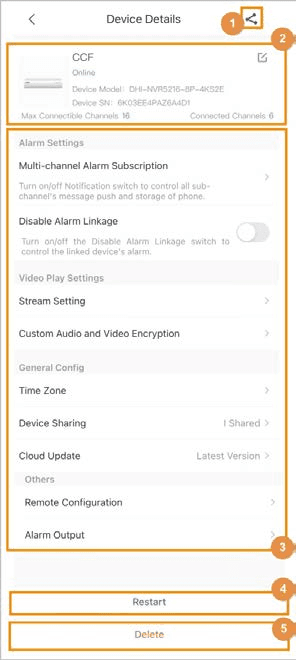
Table 5-1 Device details
| No. | Description |
|---|---|
| 1 | Tap  to share the device. For details on sharing the devices, see "5.2 Sharing Devices". to share the device. For details on sharing the devices, see "5.2 Sharing Devices". |
| 2 |
|
| 3 | Configure devices. Device configuration can be divided into five categories: alarm settings, video play settings, device config, general config, and other basic configurations. Some devices do not have the above 5 categories in the device configuration section. Please configure the device based on your actual situation.
|
| 4 | Tap Restart to restart the device. |
| 5 | Tap Delete to delete the device. |
 to open the Device Configuration screen, and then modify the device name and password, and view linked channels and the SN. For details on modifying the device password, see "5.5 Resetting and Modifying the Device Password".
 to copy the device SN.
Alarm Settings
You can subscribe for alarm messages, disable alarm linkage, set push notifications, and more.
Notification
You can subscribe for alarm messages to have notifications sent to DMSS when an alarm is triggered. You can set the type of notification to be sent. Multiple types of notifications can be selected simultaneously. This section uses configuring the IP camera as an example.
Procedure
- On the Home screen, tap next to a device, and then tap Device Details.
- On the Alarm Setting section, tap Notification, and then configure the parameters.
Tap Others to display more notification types.
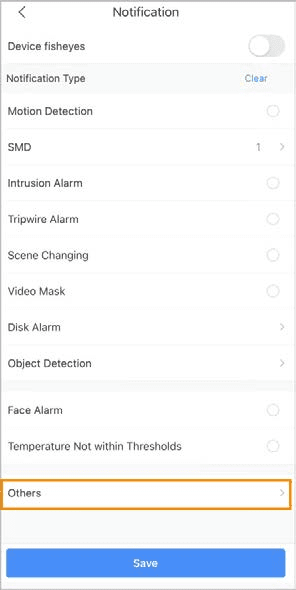
Table 5-2 Configure notification push
| Notification Type | Description |
|---|---|
| Motion Detection | The alarm is triggered when a target is moving abnormally in the picture. |
| SMD | Select Motion: Human or Motion: Vehicle. |
| Intrusion Alarm Tripwire Alarm Scene Changing Abandoned Object | The alarm is triggered when the defined rules for functions are broken such as for Tripwire, Intrusion, Abandoned Object, and Scene Changing. |
| Video Mask | Alarm is triggered when the monitoring image is shielded and the output video is in single color. |
| Disk Alarm | Alarm is triggered when there is no disk, or disk error occurs. |
| Face Alarm | The alarm is triggered when human faces are detected in the image. |
| Temperature Not Within Thresholds | The alarm is triggered when the temperature is not within the thresholds. |
| IPC Offline Alarm | The alarm is triggered when the IPC is offline. |
| License Plate Recognition | The alarm is triggered when detecting a blocklist vehicle. |
| Defocus | The alarm is triggered when the camera cannot focus on the target or the image has softened or become blurred. |
| Missing Object | The alarm is triggered when an object is missing from the image. |
| Fast Moving | The alarm is triggered when there is a fast moving target in the image. |
| Loitering Detection | The alarm is triggered when people are loitering in the image. |
| People Stranding | The alarm is triggered when people remain in a location for longer than the defined time. |
| Fire Alarm | An alarm is triggered by the presence of fire. |
| Smoking Alarm | An alarm is triggered by the presence of smoke. |
| Phone Call Alarm | The alarm is triggered when people are making a phone call. |
| IPC External Alarm | When a device that is connected to an IPC, such as an NVR, is added to DMSS, notifications will be sent when an alarm is generated on the IPC. |
| Local Alarm | Connect the alarm device to the alarm input port of the added device. When an alarm is triggered, alarm linkage actions will be performed. |
| Network Alarm | Notifications are sent when a network alarm occurs. |
| Solar Energy Alarm | An alarm is triggered when solar energy levels are low. |
| Crowd Alarm | The alarm is triggered when there are a lot of people in the area, and crowd density reaches the limit. |
Multi-channel Alarm Subscription
On the Alarm Setting section, tap Multi-channel Alarm Subscription, you can subscribe alarm messages for several channels of the device simultaneously, after which alarm notification can be pushed to the DMSS when the alarm is triggered.
The configuration for the multi-channels are the same as that of the device. For details on the notification type description, see Notification.
Alarm Ringtone Settings
You can configure alarm ringtone.
-
On the Home screen, tap
next to a device, and then tap Device Details. -
In the Alarm Setting section, tap Alarm Ringtone Setting.
-
On the Alarm Ringtone Setting screen, tap
 next to Alarm and Siren Linkage to enable the function.
A prompt window will appear to alert you that the siren is very loud. If you are sure that you want to enable this function, tap OK, and then
will become  .
. -
Set an alarm ringtone.
- Select an existing alarm ringtone.
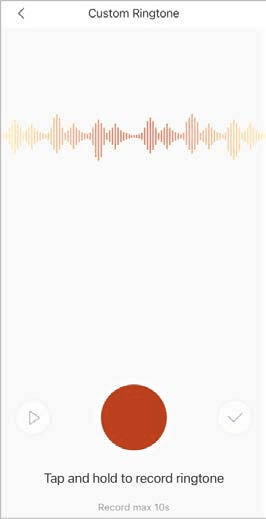
- Tap
 , and then hold
  to create your own custom ringtone. Tap
  when you finish recording. Tap
  if you want to pause recording.
Disabling Alarm Linkage
On the Alarm Setting section, tap next to Disable Alarm Linkage to disable the function of alarm linkage.
Video Play Settings
You can set video stream parameters, create your own custom audio and perform video encryption.
Stream Settings
You can set video streams and the size of the video player.
-
On the Home screen, tap
next to a device, and then tap Device Details. -
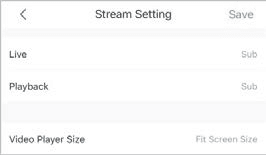
In the Video Play Settings section, tap Stream Setting, and then configure parameters.
- Select video streams from Sub or Main for live view or video playback.
- Main: Has a large bit stream, small image compression size, and high resolution, but also requires large bandwidth.
- Sub: Has a smaller bit stream, smooth video, and requires less bandwidth. It is used to replace main stream when the available bandwidth is insufficient.
- Select Fit Screen Size or Original Screen for the size of the video player.
- Select video streams from Sub or Main for live view or video playback.
Customizing Audio and Video Encryption
Background Information
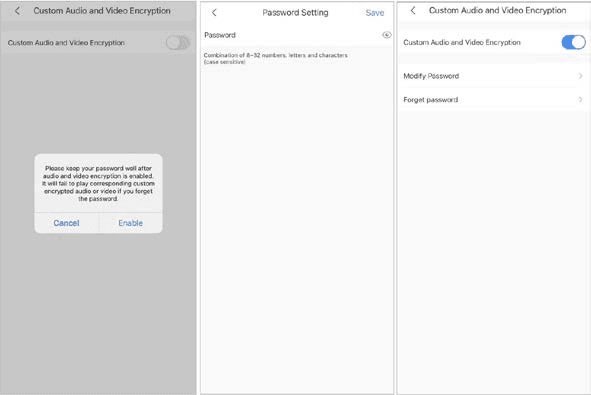
You can create your own custom audio and perform video encryption. After enabling Custom Audio and Video Encryption, you need to enter the password for live view and playback (cloud videos included).
Procedure
- On the Home screen, tap next to a device, and then tap Device Details.
- In the Video Play Settings section, tap Custom Audio and Video Encryption, and then configure parameters.
- On the Custom Audio and Video Encryption screen, tap next to Custom Audio and Video Encryption to enable the function.
-
After a prompt appears, tap Enable.
-
On the Password Setting screen, set a password, and then tap Save.
After setting the password, Modify Password and Forget password will appear on the Custom Audio and Video Encryption screen, and
will become .
Related Operations
- To modify the password, tap Modify Password on the Custom Audio and Video Encryption screen, and then enter the old and new password.
- To change the password if you forget the old one, tap Forget Password on the Custom Audio and Video Encryption screen, and a verification email will be sent to your linked email. Enter the verification code from the email and then create a new password.
Device Configuration
You can set an audio recording, white light and LED indicator.
Audio Recording
In the Device Config section, tap next to Audio Recording to enable audio recording function.
White Light
You can set white light.
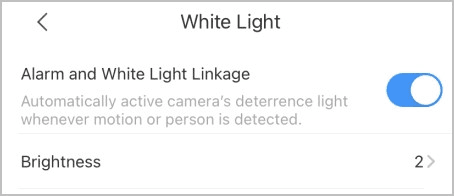
White light is activated when an alarm (such as motion detection or human detection) is triggered, and switches off when targets are not in the surveillance area.
- On the Home screen, tap next to a device, and then tap Device Details.
- In the Device Config section, tap White Light.
- On the White Light screen, tap next to Alarm and White Light Linkage to enable the function.
- Tap Brightness, and then select from 1, 2, 3, and 4 for brightness.
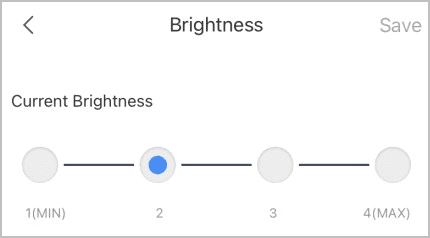
- Tap Save.
LED Indicator
On the Device Config section, tap LED Indicator to set LED indicator.
General Configuration
You can set the time zone, share devices and view device updating information.
Time Zone
When your region has Daylight Saving Time (DST), you can select the time zone and set DST.
- On the Home screen, tap next to a device, and then tap Device Details.
- On the Device Details screen, tap Time Zone of the General Config section.
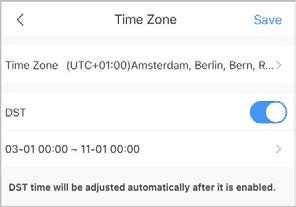
- Select the time zone that the device is in.
- (Optional) Tap next to DST to enable the function, and then set the start time and end time of the DST.
Cloud Update
On the Cloud Update screen of the General Config section, you can view the current device version and upgrade the device when a new version is discovered by the system.
Adding Devices
Add devices by manually entering the device SN, scanning the QR code, entering the IP of the device or specific domain, or by performing an online searching.
Remote Configuration
Remotely configure devices, including video detection, alarm settings, camera settings, record plans, image adjustment, storage management, and arm/disarm period, and set alarm output.