 DMSS Docs
Alarm
Manage alarm hubs and accessories, and perform operations such as arming and disarming, and configuring alarm devices.
You can manage alarm hubs and accessories, and perform operations such as arming and disarming, and configuring alarm devices.
Prerequisites
- Make sure that you have added a hub before performing configurations.
- Make sure that the hub has a stable internet connection.
- Make sure that the hub is disarmed.
Procedure
- On the Home screen, tap
 .
. - Tap
 to select a hub.
 - On the hub screen, tap
 , and then the icon becomes
  .
. - Tap
 to add the accessories. For details on adding the accessories, see the user's manual of the corresponding device.
 - Arm and disarm the detectors in a single area or all the areas through manual or scheduled operations.
- Single Arming and Disarming: Arm and disarm the detectors in a single area. For details, see Single Arming and Disarming.
- Global Arming and Disarming: Arm and disarm the detectors in all the areas. For details, see Global Arming and Disarming.
- Manual Arming and Disarming: Arm the security system through the DMSS app or keyfob.
- Schedule Arming and Disarming: Arm and disarm the detectors by schedule. For details, see Scheduled Arming and Disarming.
Related Operations
To view and edit the parameters of the hub, go to the hub screen, and then tap  . For information on configuring parameters for the General Config section, see General Configuration.
- To view the status of the hub, tap Hub Status on the Device Config section. For details on icons, see the user's manual of the corresponding hub.
- To edit the parameters of the hub, tap Hub Setting. For details on the parameters, see the user's manual of the corresponding hub.
Single Arming and Disarming
You can arm and disarm the detectors in a single area.
- On the Home screen, tap .
- On the hub screen, tap , and then the icon becomes .
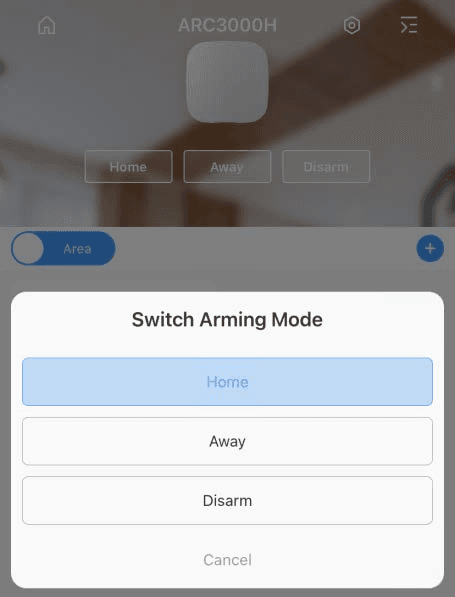
- Tap an area, and then select from Home, Away, Disarm, and Disable in the pop-up window.
- Home: An arming mode that allows you to arm the system when inside the area of the alarm system.
- Away: Arm the system when you leave the area of the alarm system.
- Disarm: Turn the security system off. The opposite of arming.
- Disable: Close the current screen.
Global Arming and Disarming
Prerequisites
Make sure that you have enabled the Global Arming/Disarming function. On the hub screen, select > Hub Setting, and then enable Global Arming/Disarming.
Background Information
You can arm and disarm the detectors in all the areas.
Procedure
- On the Home screen, tap .
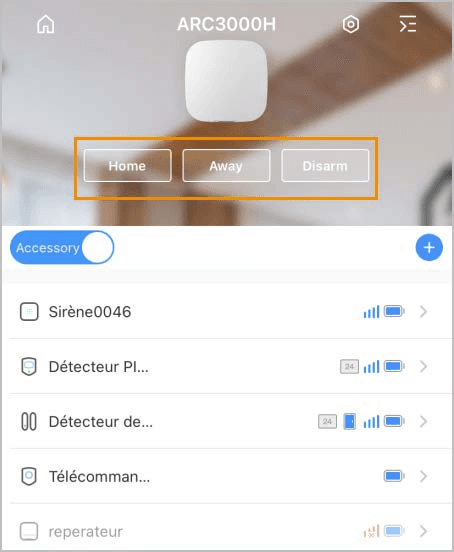
- On the hub screen, select from Home, Away, and Disarm on the upper screen.
Manual Arming and Disarming
You can arm the security system through the DMSS app or keyfob.
- To arm and disarm the detectors in a single area or all the areas, see Single Arming and Disarming, and Global Arming and Disarming.
- To operate through the keyfob, you need to assign the control permissions of the areas to the keyfob first. For details, see the user's manual of the corresponding keyfob.
Scheduled Arming and Disarming
You can setup a schedule to arm and disarm detectors. You can configure arming plans, including arming area, modes and periods.
- On the Home screen, tap .
- On the hub screen, select > Hub Setting > Scheduled Arming/Disarming.
- On the Scheduled Arming/Disarming screen, tap Add, and then configure arming plans.
-
Name: Customize a name for the arming plans.
-
Area: Select a single or multiple areas that you want to arm.
-
Command Setting: Select from Home, Away, and Disarm.
-
Time: Set an arming time.
To apply the arming time to other days, tap Repeat and select the days you want.
-
Forced Arming: Select as needed.
-