Me
Manage your account, configure the app and use the tools. You can also view the user manual of the app in help center.
You can manage your account, configure the app and use the tools. You can also view the user manual of the app in help center.
Figure 1 Me
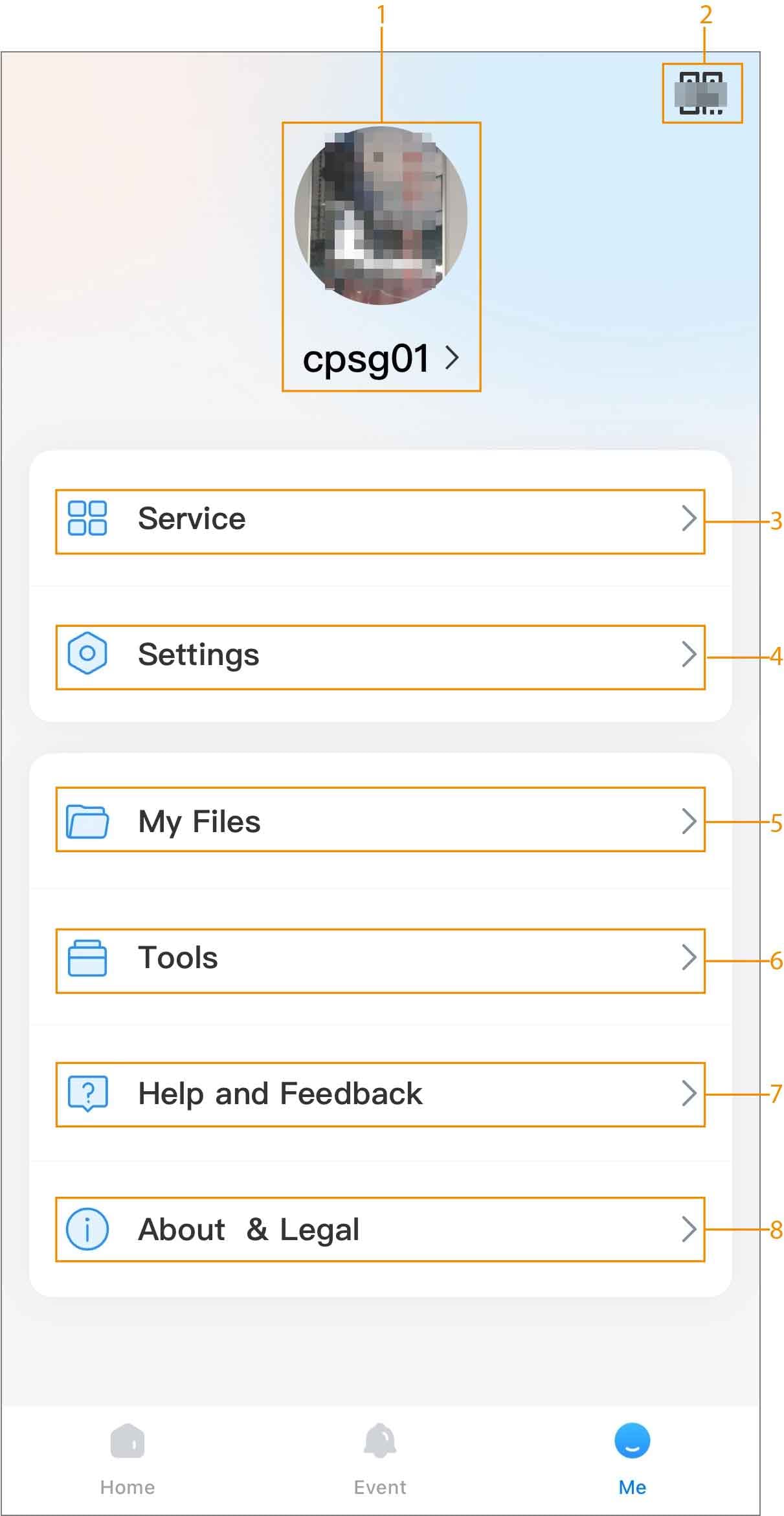
Table 1 Me
| Number | Name | Description |
|---|
| 1 | Account management | Tap the account name to go to the Account screen. |
| 2 | Account QR Code | Tap  to open the account QR code. You can tap Save to Album to save the QR to your phone. to open the account QR code. You can tap Save to Album to save the QR to your phone. |
| 3 | Service | |
| 4 | Settings | - Phone Location: View the location of your phone. You can change the location manually.
- Default Page: Select the default page when you start the app. You can select from Home and Alarm Control.
- Appearance: Tap
 / / to enable or disable the function of Match System Settings. to enable or disable the function of Match System Settings. - Play on Cellular Network: Tap / to enable or disable the function. When enabled, the system is always allowed to play on cellular network.
- Hardware Decoding: Tap
 to enable the function, and then the performance of video stream will be improved. to enable the function, and then the performance of video stream will be improved. - Video Duration in Message: Configure the duration of videos in alarm messages.
- Notification Settings:
- Tap to enable the function. After being enabled, you can set the period during which the alarm notification will be pushed.
- Tap to display the notifications in the banner.
- Alarm Audio Settings: Supports configuring the alarm audios for different alarm types.
- Phone Call: Tap to enable the function. After being enabled, if there is an incoming call while the app is running in the background, a window will appear for you to answer the call.
- Permissions: You can get the permissions, such as location, photos and camera from your phone.
- Clear Cache: Delete the cache.
|
| 5 | My Files | Snapshots and recorded videos are saved in My Files. |
| 6 | Tools | - To test the Wi-Fi status, tap
 . . - To reset the password of linked devices, tap
 . . - To test the notification pushing, tap
 . . - To configure the mobile carrier domain name, tap
 . Enter the DNS and then tap Test. . Enter the DNS and then tap Test. - Tap
 to upload the related logs. to upload the related logs.
|
| 7 | Help and Feedback | - You can view the FAQ and user's manual on the app.
- You can enter the feedback about the product. Tap Feedback, and then enter your opinions and information on products.
|
| 8 | About & Legal | - View the DMSS privacy policy.
- View the registration agreement and open source software notice.
- View information on DMSS, including the version, user agreement and open source library information.
|
 DMSS Docs