 DMSS Docs
Video Detection
When a target is detected as moving within the defined conditions, or the video image is shielded, the system will perform alarm linkage actions.
When a target is detected as moving within the defined conditions, or the video image is shielded, the system will perform alarm linkage actions.
Motion Detection
An alarm linkage action is performed when a moving target appears in the image, and its speed reaches the sensitivity level.
-
On the Device screen, tap
 next to a device, and then tap Device Details.
 -
On the Others section, select Remote Configuration > Video Detection > Motion Detection.
-
Select the device channel that you want to configure.
-
Tap
 next to Enable to enable the function.
 -
Tap
next to Advanced Configuration to enable the function, and then configure other parameters.
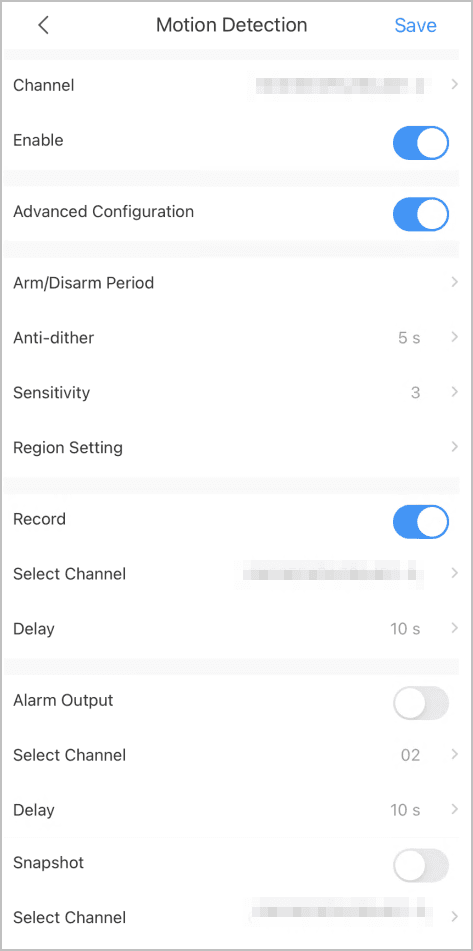
| Function | Description |
|---|---|
| Arm/Disarm Period | Set arming periods. The alarm can only be triggered when it occurs during the defined period. Select dates, tap next to defined arming period, and then tap Save. |
| Anti-dither | Set the anti-dither period from 0 s to 600 s. Only one motion detection event is recorded during the period. |
| Sensitivity | Set the sensitivity value from 0 to 100. It is easier to trigger an alarm when the sensitivity level is higher. |
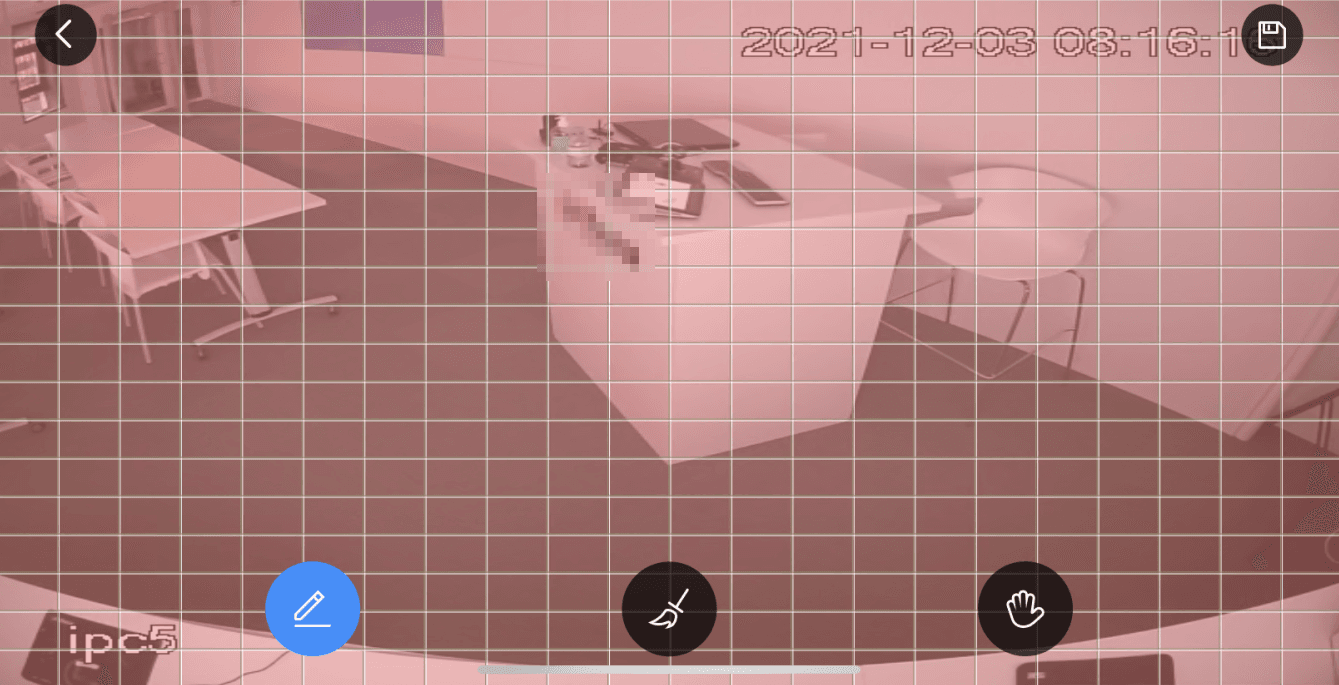
| Region Setting | Set the motion detection region. The entire video image is the monitoring area by default. - Tap  to set the motion detection region. to set the motion detection region. - Tap  to clear the zone you have set. to clear the zone you have set. - Tap  , and then pinch or stretch out your fingers to zoom in or out of the image. , and then pinch or stretch out your fingers to zoom in or out of the image. |
| Record | Tap next to Record to enable the function, and then the system records automatically when an alarm is triggered. |
| Delay | The record will be generated for the alarm at the time that was selected and will be sent after the alarm ends. |
| Alarm Output | Tap next to Alarm Output to enable the function, and then the connected alarm output device will be linked when the alarm is triggered. |
| Delay | The alarm keeps output for the defined time after the alarm is ended. |
| Snapshot | Tap next to Snapshot to enable the function, and then the system will automatically capture pictures when the alarm is triggered. |

Video Mask
An Alarm is triggered when the monitoring image is shielded or the output video is in a single color.
-
On the Device screen, tap
next to a device, and then tap Device Details. -
In the Others section, select Remote Configuration > Video Detection > Video Mask.
-
Select the device channel that you want to configure.
-
Tap
next to Enable to enable the function. -
Tap
next to Advanced Configuration to enable the function, and then configure other parameters.
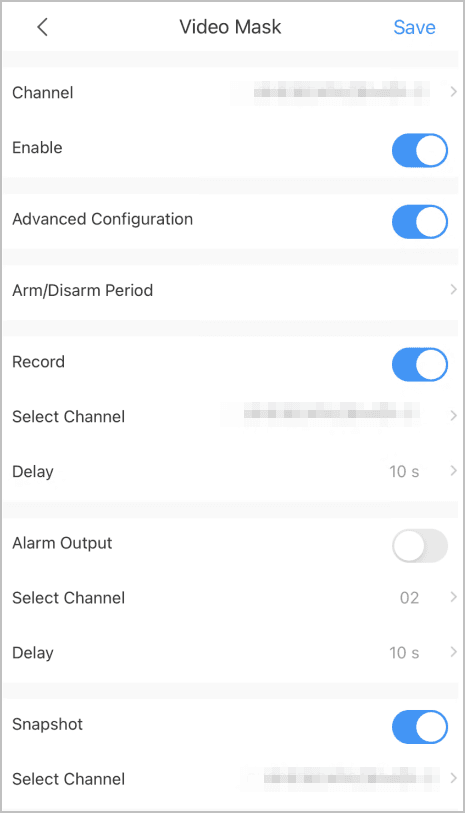
- Tap Save.
Remote Configuration
You can remotely configure the device including video detection, alarm settings, camera settings, storage management, and image adjustment.
Alarm Settings
When an alarm is triggered, linked actions such as recording, snapshot, and alarm output will occur. The system supports multiple alarm types primarily for network video recorders.